

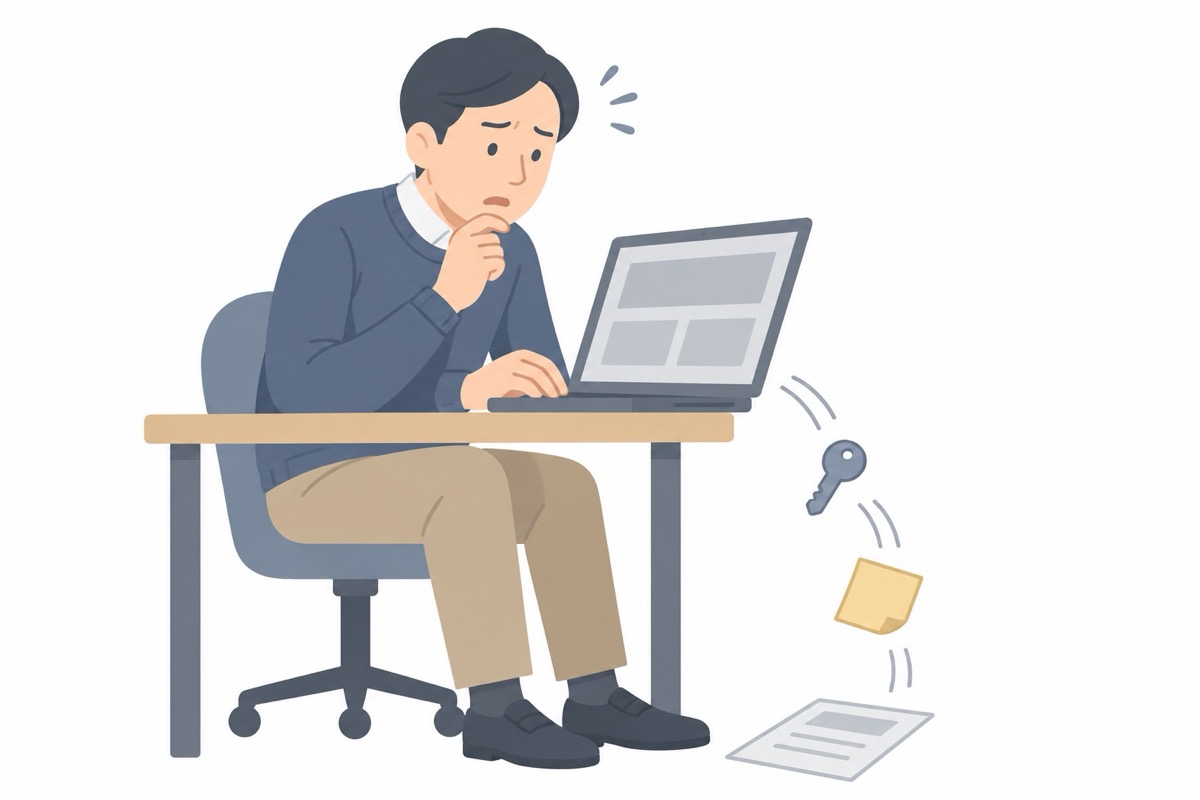
- The five things most often left on employee PCs are cloud access keys, notes and Excel files with passwords, browser-saved passwords, downloaded customer data, and credentials pasted into chat.
- IPA explains that an infostealer (information-stealing malware) can steal IDs and passwords saved in browsers and mail clients, and that stolen credentials are sometimes traded with ransomware groups.
- The defence is not to hide them but to stop storing them, and make them useless if stored. Build it from five parts: a password manager, short-lived credentials, download rules, disk encryption and remote wipe.
- BitLocker on Windows and FileVault on Mac cost nothing extra, but without a plan for the recovery key you can lock yourself out of your own data.
- Checking the PCs of just two or three employees with the checklist shows the pattern for the whole company.
The “keys” and “lists” that stay on PCs
When we look at employee PCs during assessments, we often find things that were put there for work and then forgotten. They fall into two groups: “keys” that open systems, and “lists” such as customer data.
| What gets left behind | Where it usually sits | What happens when the PC is stolen or infected |
|---|---|---|
| Cloud access keys (long strings used to operate AWS and similar services) | Config files, Notepad, emails from the web agency | The company’s whole cloud can be operated from outside |
| Notes and Excel files with passwords | “passwords.xlsx” on the desktop, sticky notes | Someone logs in to every service on the list |
| Passwords saved in the browser | Chrome or Edge password saving | Automatic login to every saved site |
| Downloaded customer data | CSV files in the “Downloads” folder, sent attachments | A personal data breach that must be reported and notified |
| Credentials pasted into chat | Internal chat history, forwarded emails | Leaks from everyone who can read the log, not just the owner |
All of them start as “just for now”. The problem is that neither the employee nor the company remembers they are there when the PC alone leaves the office or gets infected with malware (malicious software).
What leaks when a PC is stolen or infected
If a PC is lost or stolen and the disk is not encrypted, a login password does not help: pulling the disk out and connecting it to another PC is enough to read everything. Everything in the table above goes with it.
The other growing threat is information-stealing malware known as an “infostealer”. IPA (Information-technology Promotion Agency, Japan) explained it this way in an August 2026 document.
The same document says stolen credentials are sometimes traded with attackers such as ransomware groups (ransomware encrypts data and demands payment). In other words, one infected PC later becomes the entry point into the whole company. It is no coincidence that in IPA’s “10 Major Security Threats 2026” for organizations, “damage from ransomware attacks” is first and “attacks targeting remote work environments and mechanisms” is eighth.
According to Japan’s National Police Agency, in June 2025 the INTERPOL-led international operation “Secure” brought together 26 countries, including Japan, to take down servers used by infostealers, and 129 servers were taken down in Japan. These were servers normally used by companies that had been compromised and abused for data theft without their administrators noticing. Companies that do not notice an infection are not rare.
Five practices for keeping secrets off PCs
The defence is not “hide it well” but “do not store it on the PC in the first place, and make it useless if it is stored”. Here they are in the order a company without IT staff can start.
1. Put passwords in a password manager
Instead of Excel, sticky notes and the browser’s save feature, pick one password manager for the company (a dedicated vault protected by a master password and multi-factor authentication). When someone leaves, you only need to stop their access to the vault, and you no longer have the problem of “we don’t know where they wrote it down”.
2. Stop using long-term cloud keys
AWS’s security best practices for IAM (the system that manages users and permissions) say that people should access AWS with temporary credentials through an identity provider, that long-term credentials such as access keys should be avoided wherever possible, that unused credentials should be reviewed and removed regularly, and that MFA (multi-factor authentication) should be required. You can start by asking your web agency: “Are there access keys on employee PCs?” and “If so, can they be switched to credentials that expire?”
3. Put rules on downloading customer data
Decide which tasks may download data, how long it may be kept, and that it is deleted afterwards. Most tasks can be done by viewing data on the screen of the core system or cloud service, with no need for a CSV on the PC. Taking stock of customer data already on PCs is covered in personal data inventory and deletion.
4. Encrypt the disk
BitLocker on Windows (available in the Pro, Enterprise and Education editions) and FileVault on Mac are disk encryption features that cost nothing extra. Microsoft’s documentation positions BitLocker as addressing “data theft or exposure from lost, stolen, or inappropriately decommissioned devices”. The caution is the recovery key: Apple advises keeping the FileVault recovery key “somewhere other than your encrypted startup disk”. As a company you need a way for administrators to hold recovery keys centrally (Microsoft Entra ID or an MDM).
5. Be able to wipe a lost device remotely
With an MDM (mobile device management: a system that manages the company’s PCs and phones together), you can lock a lost device remotely or erase its contents. Combined with encryption, you reach a state where you can say “it was stolen, but the contents could not be read, and we erased it”.
A checklist you can run yourself
Looking at the PCs of just two or three employees shows the pattern for the whole company.
- No files with passwords or customer CSVs remain on the desktop or in “Downloads”
- Browser password saving is turned off and passwords have moved to the password manager
- No AWS or other cloud access keys remain on employee PCs or in emails from the web agency (or they have been switched to credentials that expire)
- Disk encryption (BitLocker or FileVault) is on for every company PC, and administrators hold the recovery keys
- A lost device can be locked and wiped remotely (an MDM is in place)
- There is a rule against pasting credentials into chat or email, and anything pasted in the past has been changed
- When someone leaves, collecting and resetting their PC and stopping their vault and cloud access are done together
IPA’s “Information Security Measures Guidelines for SMEs” (version 4.0, March 2026) comes with a “5-minute information security self-assessment”. Think of the list above as one step further, focused on what is inside the PCs.
What to do, in order
- This week: try the checklist on two or three employees’ PCs and find where the “keys” and “lists” sit. Change or revoke any access keys and passwords you find on the spot
- This month: turn on disk encryption for all company PCs and decide where recovery keys are kept. Choose one password manager and start moving passwords out of Excel, sticky notes and browser storage
- Next month: work with your web agency and maintenance company to replace long-term cloud access keys with credentials that expire. Write down the rules for downloading customer data and how long it may be kept
- Every six months: repeat the checklist and confirm the records of PC collection and access removal for people who left. Whether old keys or public files remain visible from outside can be checked with a free external check
Not sure what your own environment runs on?
With our Security & IT Support, you can hand over everything from inventorying the technologies and versions you use to checking them against vulnerability information, applying fixes and verifying after updates. It is a monthly subscription (quasi-mandate contract) of 5–15 hours a month from US$200/month, with Japanese-language support and only a 2-hour time difference from Japan.