

- On Oct 22, Huntress reported 497 successful sign-ins across 79 organizations from attackers replaying tokens stolen after MFA (observed July 14 – September 22, 2026)
- Attackers registered rogue devices in Entra ID, replaced victims’ MFA with their own authenticator, and hid mail with inbox rules
- Resetting the password alone leaves attacker-added devices and MFA methods in place
- We summarize the items admins can check themselves in a checklist
What happened: the Huntress report
On October 22, 2026, Huntress published an analysis of an attack campaign against Microsoft 365 (Huntress report). Between July 14 and September 22, 2026, attackers stole the “tokens” issued after MFA and replayed them in bulk from hosting-provider IP addresses. Huntress calls this “token spraying.”
| Item | Figure (per Huntress) |
|---|---|
| Victim organizations | 79 |
| Successful sign-ins | 497 |
| Failed login attempts | Over 200,000 |
| Rogue devices registered | 48 |
| Organizations where MFA was wiped and replaced | 19 |
According to Huntress, the gap between the MFA prompt and token replay was 12 minutes in a July 21 case and 4 minutes in a September 22 case. Attackers were inside before victims could notice anything was wrong.
Why MFA alone didn’t stop it
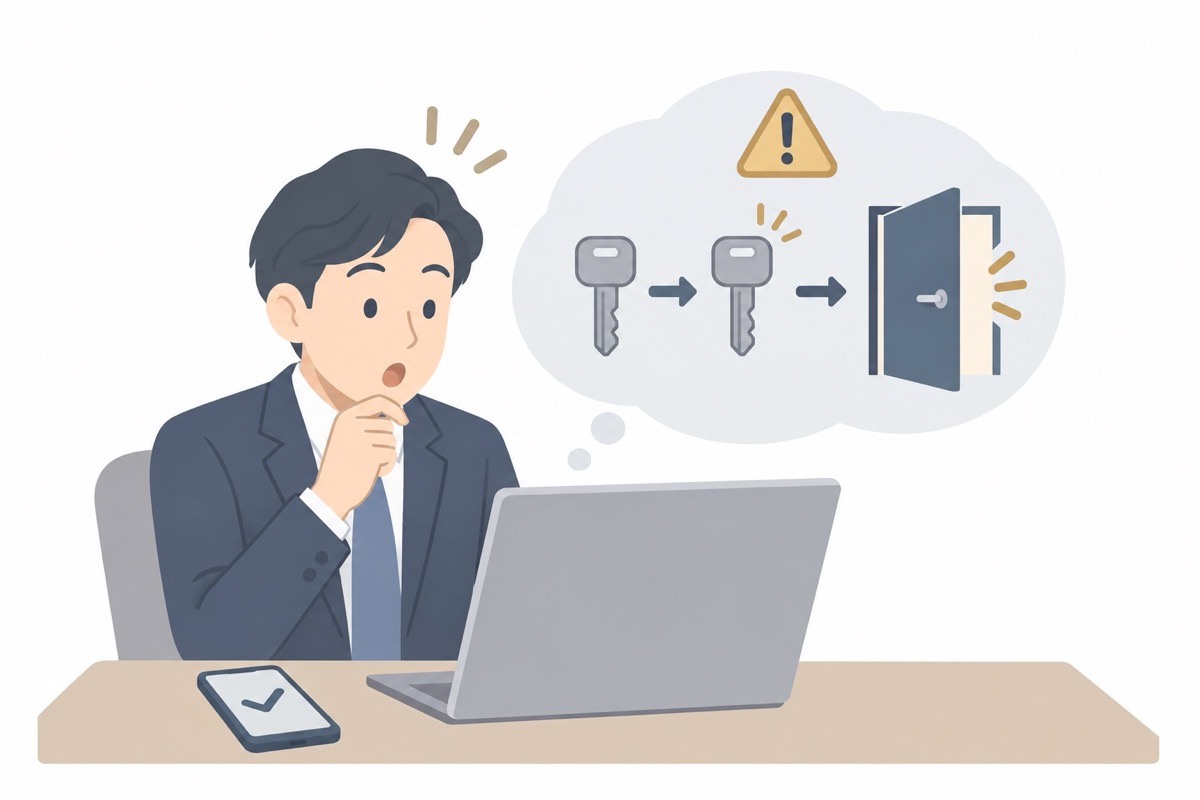
Think of signing in like entering an office building. Your password and MFA are the identity check at reception. Once you pass, reception gives you a visitor pass (a token). For a while after that, you just show the pass to come and go—checking ID every time would be impractical.
This attack snatches the pass. Huntress describes two main methods:
- AiTM (adversary-in-the-middle) phishing: a fake sign-in page relays traffic between the user and the real Microsoft sign-in page. The user enters password and MFA as usual, and MFA really succeeds—but the attacker keeps the resulting token
- Device-code phishing: abuses the “enter this code to sign in” flow used by devices without keyboards. When a user is tricked into entering a code the attacker generated, the attacker’s session becomes signed in
What the attackers did once inside
Stolen tokens expire, so the attackers set up ways to stay in (Huntress):
- Registering rogue devices in Entra ID: Entra ID (formerly Azure AD) manages Microsoft 365 accounts. Attackers registered devices with ordinary-looking names such as “DESKTOP-” followed by eight characters, to look like company PCs
- Swapping MFA: in 19 organizations, the victim’s MFA method was removed and the attacker’s authenticator app registered. After that, even if the user changes the password, the attacker can pass MFA
- Hiding mail with inbox rules: rules named with one to three characters or punctuation (“.”, “sss”, “s”) marked mail as read and deleted it, or moved it to rarely viewed folders like RSS Feeds or Conversation History. One rule hid mail mentioning payroll, direct deposit, bank or bonus
- Sending fraudulent mail: in one case a payroll-related email was sent to an outside party from a compromised account—a pattern leading to business email compromise (BEC)
What admins can check themselves
Based on Huntress’s recommendations, here is what a Microsoft 365 admin (including part-time IT staff) can check. Screen locations and names vary by plan and over time, so we focus on *what* to look at.
Sign-in logs
- Any successful sign-ins from countries or providers (cloud/hosting) your staff don’t normally use?
- Review Conditional Access blocks too. Huntress notes the block happens after authentication succeeds, so treat it as a sign valid credentials were stolen
- Prioritize successful sign-ins over failure counts (Huntress advises prioritizing by credential validity, not spray volume)
Registered devices
- Any unfamiliar devices in the Entra ID device list?
- Investigate devices named “DESKTOP-”, “Device-” or “Work Pc” plus eight characters, especially if registered from hosting IPs (confirm before deleting)
Authentication method (MFA) changes
- Any history of MFA methods removed and new ones registered within minutes or hours?
- Confirm each user’s registered authenticator apps and phone numbers are their own; remove unknown ones
Inbox rules and forwarding
- Any inbox rules with one-to-three-character or punctuation-only names?
- Any rules moving mail to RSS Feeds, RSS Subscriptions or Conversation History?
- Any rules keyed on payroll, bank or bonus terms, or on a business partner’s domain?
- Any automatic forwarding to external addresses?
Configuration (prevention)
- Conditional Access requires MFA (or blocks) for all users, all cloud apps and all client app types, with no exceptions (Huntress’s baseline)
- Device-code sign-in is restricted to where it’s needed, using authentication-flow policies
- Standard users can’t consent to new applications themselves; they must request them
- You regularly check for unfamiliar enterprise applications
Microsoft also offers mechanisms that bind tokens to a specific device so stolen tokens are harder to use elsewhere. Availability depends on your plan, so check Microsoft’s official documentation or your reseller before planning adoption.
First response if you suspect a takeover
Following Huntress’s recommendations, handle a suspected compromised account in this order. Most importantly, don’t stop at a password change.
- Revoke all sessions for the account
- Reset the password
- Find and remove devices the attacker added
- Remove attacker-added MFA methods and re-register the user’s own
- Review inbox rules and forwarding, and delete anything suspicious
- Check mail sent from the account and warn partners if fraudulent mail went out
Because access tokens can stay valid for a while after theft, keep watching sign-in logs after revocation.
What to tell employees
- When a Microsoft sign-in page opens from a link, check the URL looks as usual
- Never enter a sign-in code you didn’t request yourself
- Don’t approve MFA prompts you didn’t trigger—report them to IT right away
- Verify requests to change payroll or payment details through another channel, such as a phone call
Summary
- On Oct 22, Huntress reported 79 organizations compromised by replay of tokens stolen after MFA. MFA wasn’t broken—the “pass” issued after it was stolen
- Attackers persist via rogue devices, swapped MFA and hidden inbox rules; a password change alone won’t remove them
- Sign-in logs, registered devices, MFA change history, and inbox rules/forwarding are things admins can check today
- MFA is still necessary. On top of it, remove Conditional Access exceptions and restrict device-code flow and app consent
For JPCERT/CC’s updated alert in the same period, see automated attacks and small misconfigurations; for what to do when a cloud service you use is breached, see this guide. If you’d like help reviewing your Microsoft 365 settings, see our Security & IT Support.
Not sure what your own environment runs on?
With our Security & IT Support, you can hand over everything from inventorying the technologies and versions you use to checking them against vulnerability information, applying fixes and verifying after updates. It is a monthly subscription (quasi-mandate contract) of 5–15 hours a month from US$200/month, with Japanese-language support and only a 2-hour time difference from Japan.